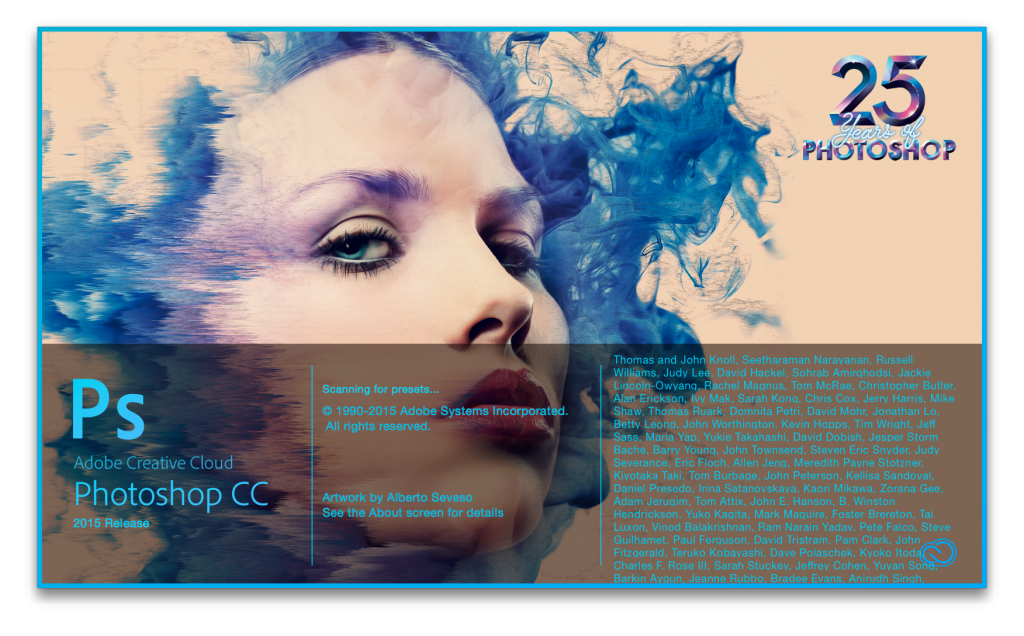
Adobe Photoshop is the industry-standard image editing software for photographers. While Lightroom handles photo management and global adjustments, Photoshop excels at detailed retouching, compositing, and pixel-level editing.
This page contains our complete library of Photoshop tutorials for photographers, organized by category. If you want a free alternative, consider GIMP (or Darktable as a Lightroom alternative).
Background & Compositing
Remove, replace, or extend backgrounds and combine multiple images.
- How To Replace The Background Of A Photo
- How To Remove The Background From A Portrait
- How To Change The Background Color Of A Photo
- How To Extend The Background Of A Photo
- How To Add Color To The Background Of A Portrait
- How To Replace The Sky
- How To Make A Double Exposure
- How To Expand Photos Using Content Aware Scale
Object Removal
Remove unwanted elements from your photos cleanly.
- How To Remove People From Crowded Scenes
- How To Remove Distracting Objects
- How To Automatically Remove Objects
- How To Manually Remove Chromatic Aberrations
Portrait Retouching
Professional techniques for skin, hair, and beauty retouching.
- How To Retouch Portraits
- How To Make Skin Nice And Smooth
- How To Make Baby Skin Look Good
- How To Fix Wrinkles
- How To Remove Stretch Marks
- How To Remove Tattoos
- How To Make People Look Tanned
- How To Make Hair Look Great
- How To Change Hair Color
- How To Get Rid Of Gray Hair
- Advanced Portrait Retouching Techniques
Selections & Masking
Master the art of precise selections for targeted edits.
- How To Use The Lasso Tool
- How To Make Selections Using Brushes
- How To Make Selections Using Channels
- How To Use Channels
- Making Circle Selections
- Rectangle Marquee Tool
- Magnetic Lasso Tool
Color & Lighting
Adjust colors, fix exposure issues, and create lighting effects.
- Learn About Color In Photoshop
- How To Replace Colors In A Photo
- How To Fix Dark Shadows
- How To Fix Colors In Old Photographs
- How To Make Fake Shadows
- How To Make Light Rays
- How To Use Dehaze
Special Effects
Create artistic effects and stylized looks.
- How To Make A GIF
- How To Make A Dark Film Look
- How To Add Or Remove Fog
- Creating Artificial Depth Of Field
Photo Restoration & Output
Restore old photos and prepare images for output.
- How To Fix An Old Photo
- How To Increase Resolution Using Super Resolution
- How To Make Your Photos Look Great Online
- 28 Incredible Photoshop Tricks And Tips
Keyboard Shortcuts
Speed up your workflow with these essential shortcuts (Windows/Mac).
File & Document
- Ctrl/Cmd + N: New Document
- Ctrl/Cmd + O: Open Document
- Ctrl/Cmd + S: Save
- Ctrl/Cmd + Shift + S: Save As
- Ctrl/Cmd + P: Print
- Ctrl/Cmd + Tab: Switch Between Open Documents
- Ctrl/Cmd + Alt + W: Close All Documents
Edit & History
- Ctrl/Cmd + Z: Undo
- Ctrl/Cmd + Y: Redo
- Ctrl/Cmd + Alt + Z: Step Back in History
- Ctrl/Cmd + Shift + Z: Step Forward in History
- Ctrl/Cmd + A: Select All
- Ctrl/Cmd + C: Copy
- Ctrl/Cmd + X: Cut
- Ctrl/Cmd + V: Paste
Layers
- Ctrl/Cmd + J: Duplicate Layer
- Ctrl/Cmd + Shift + N: New Layer
- Ctrl/Cmd + E: Merge Down
- Ctrl/Cmd + Shift + E: Merge Visible
Adjustments
- Ctrl/Cmd + L: Levels
- Ctrl/Cmd + Shift + L: Auto Levels
- Ctrl/Cmd + M: Curves
- Ctrl/Cmd + U: Hue/Saturation
- Ctrl/Cmd + B: Color Balance
Transform & View
- Ctrl/Cmd + T: Free Transform
- Ctrl/Cmd + Shift + T: Repeat Last Transform
- Ctrl/Cmd + R: Toggle Rulers
- Ctrl/Cmd + ‘: Toggle Grid
- Ctrl/Cmd + ;: Toggle Guides
- Ctrl/Cmd + K: Preferences
- Ctrl/Cmd + F: Reapply Last Filter
Learn how to create custom keyboard shortcuts